I. Version Overview
1. Delivers compatibility and performance optimizations for V4e LiDAR scanning on Android devices. The iOS version focuses on bug fixes and stability improvements.
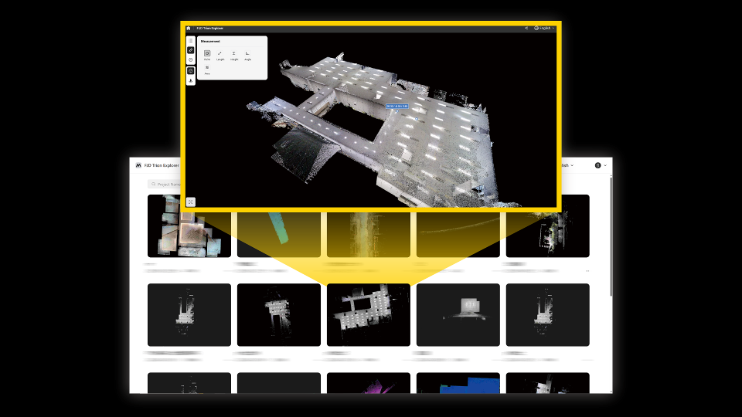
2. Requires post-processing of V4e LiDAR data captured on Android phones in Model PC v206.004 or Model iPad v1.9. Post-processing on Model Android Pad is currently not supported.
3. Please note that colorization post-processing for Android-captured data is currently unavailable.
II. Supported Devices & System Requirements
1. Supported Devices
- Tested and verified devices include the Samsung Galaxy S20–S25 series.
Note: Due to limited device testing, compatibility with other Android models cannot be guaranteed.
2. System Requirements
To ensure stable and smooth scanning performance, the minimum requirements are:
- RAM: 12 GB or above
- Storage: 256 GB or above
- Operating System: Android 10 or later
- At least 20 GB of available storage before starting a scan
3. Setup Instructions
When connecting an Android phone to V4e LiDAR for the first time, please complete the Ethernet configuration as follows:
- Connect the V4e LiDAR to the Android phone.
- Open Settings and search for Ethernet.
- Configure the parameters:
- Ethernet device: eth0
- Connection type: Static IP
- IP address: 192.168.158.15
- Subnet mask: 255.255.255.0
- DNS address: 8.8.8.8
- Default gateway: 8.8.8.8
- Proxy: None
4. Tap Save, turn on Ethernet, and return to FJD Trion Scan. The system will automatically detect and establish the connection.
Notes:
(1) Do not enable Ethernet before completing the configuration.
(2) For subsequent use, no additional configuration is required; the system automatically recognizes and connects once the device is plugged in.
III. Download
- Existing users: Open FJD Trion Scan → go to Settings → tap Check for Updates to upgrade.
- New Android users: Search for “FJD Trion Scan” on Google Play to download.
- New iOS users: Search for “FJD Trion Scan” on the App Store to download.